How to Install an eSIM on iPhone (Step-by-Step)
Installing an eSIM on iPhone takes about 3 minutes. Here is the exact process for all supported models, plus what to do if it fails.
Which iPhones support eSIM?
All iPhones from the XS and XR onward support eSIM. That covers every iPhone released since 2018. One model-specific note: iPhone 14 and later sold in the United States have no physical SIM slot at all, only eSIM. If you bought a US-model iPhone 14 or newer, eSIM is your only option, which also means it's already unlocked for eSIM use.
To check compatibility: go to Settings > General > About and scroll down. If you see "Available SIM" or an eSIM section, you're good. If you don't see any eSIM reference, your phone either doesn't support it or was sold carrier-locked.
One requirement: your phone must be carrier-unlocked
If you bought your iPhone through a carrier on a payment plan, it may be locked to that carrier. A locked phone will reject eSIM profiles from other providers. Check with your carrier about unlocking status before buying a travel eSIM. Most carriers unlock phones after the contract period or payment plan is complete.
Installation via QR code
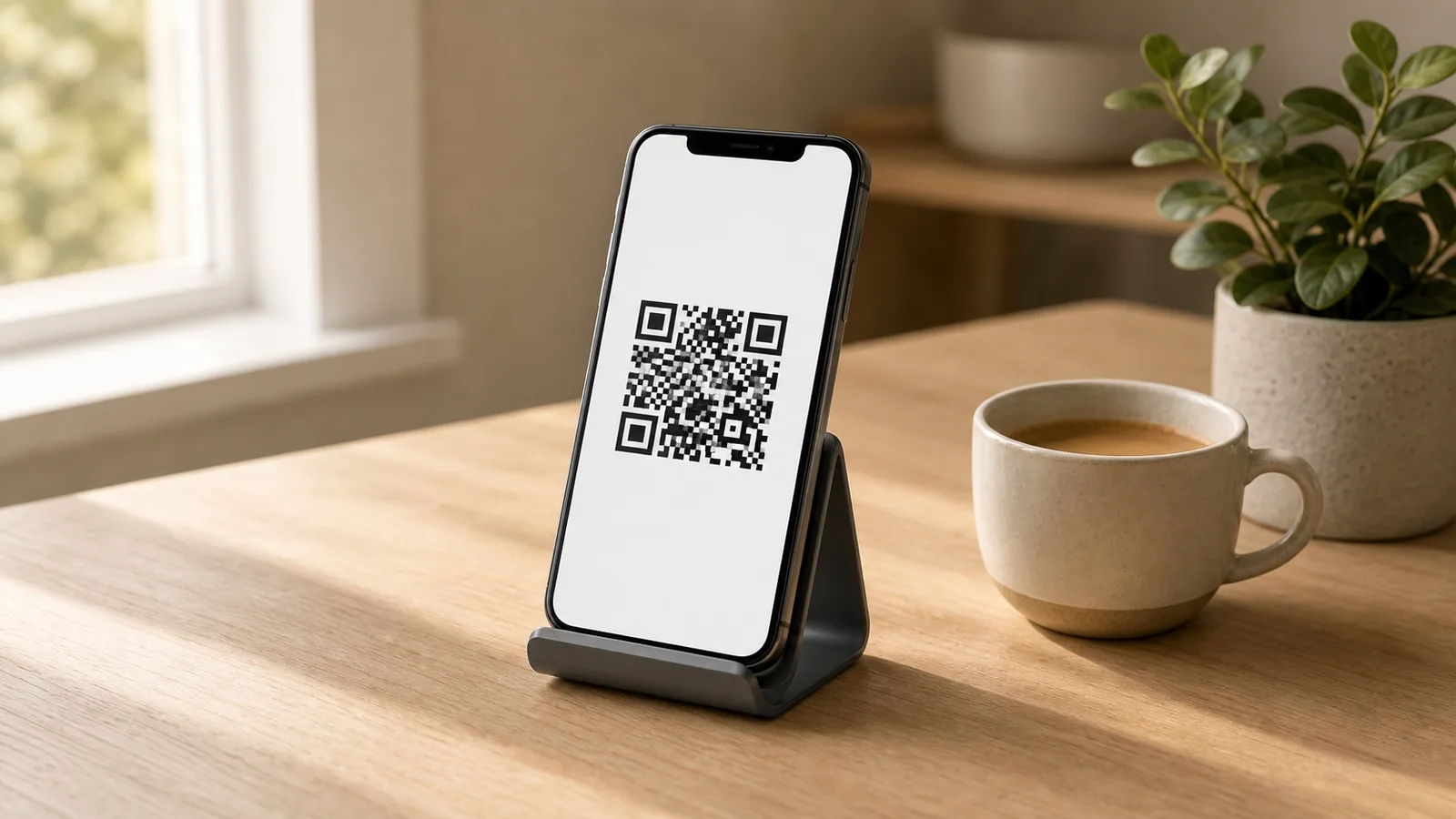
This is the standard method used by most eSIM providers. After purchasing a plan, you receive a QR code by email or in the provider's app.
- Go to Settings > Cellular (or Mobile Service on non-US phones).
- Tap Add Cellular Plan or Add eSIM.
- Select Use QR Code and scan the code from your provider.
- Follow the on-screen prompts. You'll be asked to label the plan (something like "Travel eSIM" works).
- When asked which line to use for data, select the travel eSIM. Keep your home plan as the primary line.
- Turn on Data Roaming for the travel eSIM if it's for international use.
Installation via provider app
Some providers (Airalo, Holafly, and others) let you buy and install directly through their apps. Download the app, purchase the plan inside it, and the installation happens automatically. Same result, fewer steps.
Tips for a smooth setup
Do this on WiFi before you travel. Most eSIM activations require an internet connection to complete. If you wait until you land and have no WiFi, installation may fail.
Set your travel eSIM as the secondary data line. Keep your home plan active so you receive calls and messages. Under Cellular Data, select the travel eSIM. Disable Allow Cellular Data Switching if you don't want the phone to automatically fall back to your home plan (which could incur roaming charges).
Each QR code can only be used once. If you need to reinstall on a new device, you'll need a new QR code from the provider.
What to do if installation fails
Check the activation window first. Some eSIM plans expire if not activated within 30 days of purchase. If you bought the plan months in advance and never activated it, this may be the issue.
Restart your phone and try again. Temporary connectivity glitches cause most installation failures.
If the QR code doesn't scan cleanly (bad lighting, glare on screen), ask the provider for the manual activation code. Most provide an SM-DP+ address and activation code you can enter manually.
Still stuck? Contact the provider's support. The resolution is almost always a new QR code.
Frequently asked questions
Which iPhones support eSIM?+
Every iPhone from the XS and XR onward, which covers all models released since 2018. iPhone 14 and later sold in the United States are eSIM-only with no physical SIM slot at all.
How do I install an eSIM on iPhone?+
Go to Settings, then Cellular, tap Add eSIM or Add Cellular Plan, choose Use QR Code, and scan the code from your provider. Label the plan, select it for data, and enable Data Roaming for international use. Do this on WiFi before you travel.
What should I do if eSIM installation fails on my iPhone?+
Check that the plan's activation window has not expired, restart your phone and try again, and if the QR code will not scan, ask the provider for the manual SM-DP+ address and activation code. If it still fails, request a new QR code.